There is only downside to owning KEF's LS50 wireless speakers, you can't see which input is selected without walking up to the speaker or waiting ages for the phone app to load. The remote also doesn't have dedicated quick select buttons for the five inputs. Luckily there is a solution, a rather crude solution, to this 1st world problem: programmable remotes. I wrote this tutorial based on my notes I wrote down a piece of paper so hopefully I didn't miss any crucial steps. The serial number of my speaker set is LS50W07912Jxx.
Bill of Materials
- A computer running a Linux variant. I have Ubuntu 24.04.3.
- A remote control with an exposed JP1.X port. Oneforall remotes seem to work fine.
- A 3.3v FTDI cable, available cheaply on Aliexpress/eBay
- Dupont cables
- Remote Master (aka RMIR) - follow installation instructions on the project webpage.
I suppose RMIR works on Windows too but I don't have Windows so I can't test.
Connect the remote to a computer
Needless to say, if you fry your remote or computer - too bad. The JP1.X port has six pins. Connect pins to the cable as follows:
1	Empty
2	RTS#
3	Ground
4	TX
5	Ground
6	RX
It is probably easiest to connect pin 5 to pin 3 using a Dupont cable by showing the male pin into the female connector of the cable connecting pin 3 to the FTDI cable from the above. The pin out and an example of wiring is shown below. It seems FTDI cable pin outs vary. It is either printed onto the packaging or shown on cable's Aliexpress/eBay page.
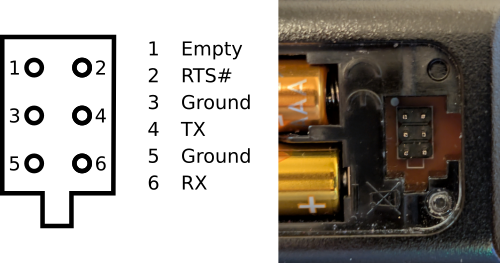
JP1.X port pin out and a real life example.

This is what my remote looks like. And yes, I didn't have any spare female-male Dupont cables on hand so I connected a male-male cable to the other ground pin using an alligator clip cable.
RMIR
Once the remote is connected to the computer, you need to figure out where your dongle is. If you ls -l /dev/ttyUSB* in terminal, disconnect the cable and put it back in followed by the same command, you'll probably see which entry changed, and chances are that it is your dongle.
Open RMIR and go to Remote-Interface-JP1.X. When the port selector opens, select the port or use the "other" option. Use full path of the dongle e.g. /dev/ttyUSB3. Then go to Remote-Download from remote. A few seconds later you should see remote's current configuration. This is where you can create a backup (File-Save as). If you get an error, it is probably because your user account does not have read/write access to the USB dongle port. In that case ls -l /dev/(your port), see which group it belongs to (likely dialout) and add your own account to this group (sudo usermod -a -G dialout yourusername) and log out and back in. Once you're back in, do "groups" in terminal to verify group membership.
When you've downloaded data from the remote, what you should do is you should wipe all existing settings from General, Key Moves, Macros, and Learned Signals tabs. First populate the General tab. Choose one of the "Types", it seems to be irrelevant which one you choose. If your remote supports several devices, you can choose to map the Kef remote behind one or all of the devices. Setup code should be a code that is not used by the remote. The code turned red when I tried to use the same code that my remote used to begin with. Once you're done, go to the Devices tab and populate it with something similar to the image below. Choose the same setup device type and code as on the General tab. The device code is 128 and protocol is NEC1.
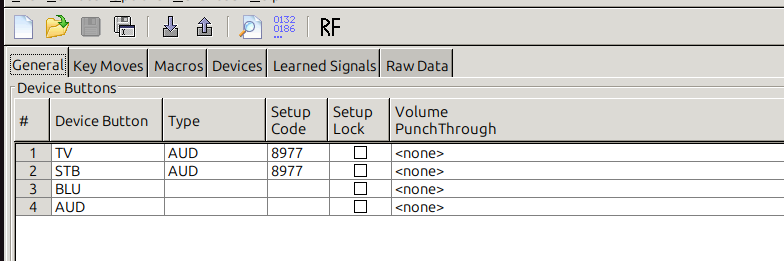
Fully populated General tab in RMIR. My remote supports two devices and I mapped the remote to both devices.

Fully populated Devices tab in RMIR.
RMDU - Device upgrade editor
Now you need to launch RMDU (Device upgrade editor). Click on "New" on the bottom of the Device tab and RMDU opens. Use the same setup code, choose NEC1 protocol and insert 128 as the device code. Everything else, use default values or leave blank. Then go to the Functions tab and insert the values shown in the image below. You only need to add the Hex value. Everything else is populated by RMDU based on the configuration made on the previous page. It would be great to say I figured these out by poking the firmware of the speakers or something similar, but no, these are the fruit of good old brute force testing. Once done, go to the Buttons tab and drag drop red texts from right hand side of the screen to "Function" column. Once done, hit Save as and save your bindings. After saving, hit "OK", and RMDU closes and RMIR opens again.
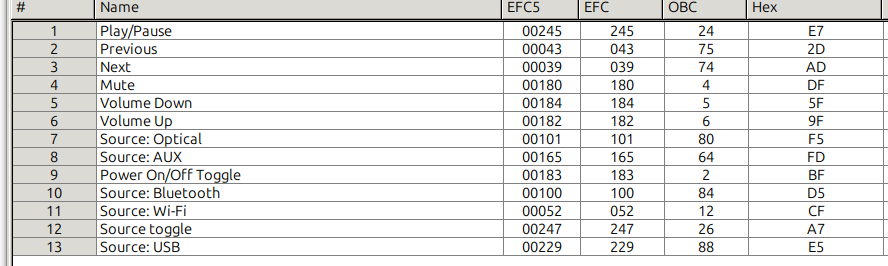
Codes for
Flashing the upgrade
When in RMIR you might want to "Export" your settings. Once done, you're ready to flash the upgrade. Go to Remote-Upload to remote. Say yes/ok to confirmation screens. Wait for a while and test. You need to remove the Dupont cables from the remote or unplug the USB cable of your dongle, or the remote won't work.